
Virtual browser with a saved Chrome profile.
A virtual browser is a real browser running on a remote server. Open an isolated Chrome desktop in your current tab without installing anything. Pause it and return to your saved profile, or connect an automation tool to the same browser.
Open a virtual browserVerify your email to create a saved browser.
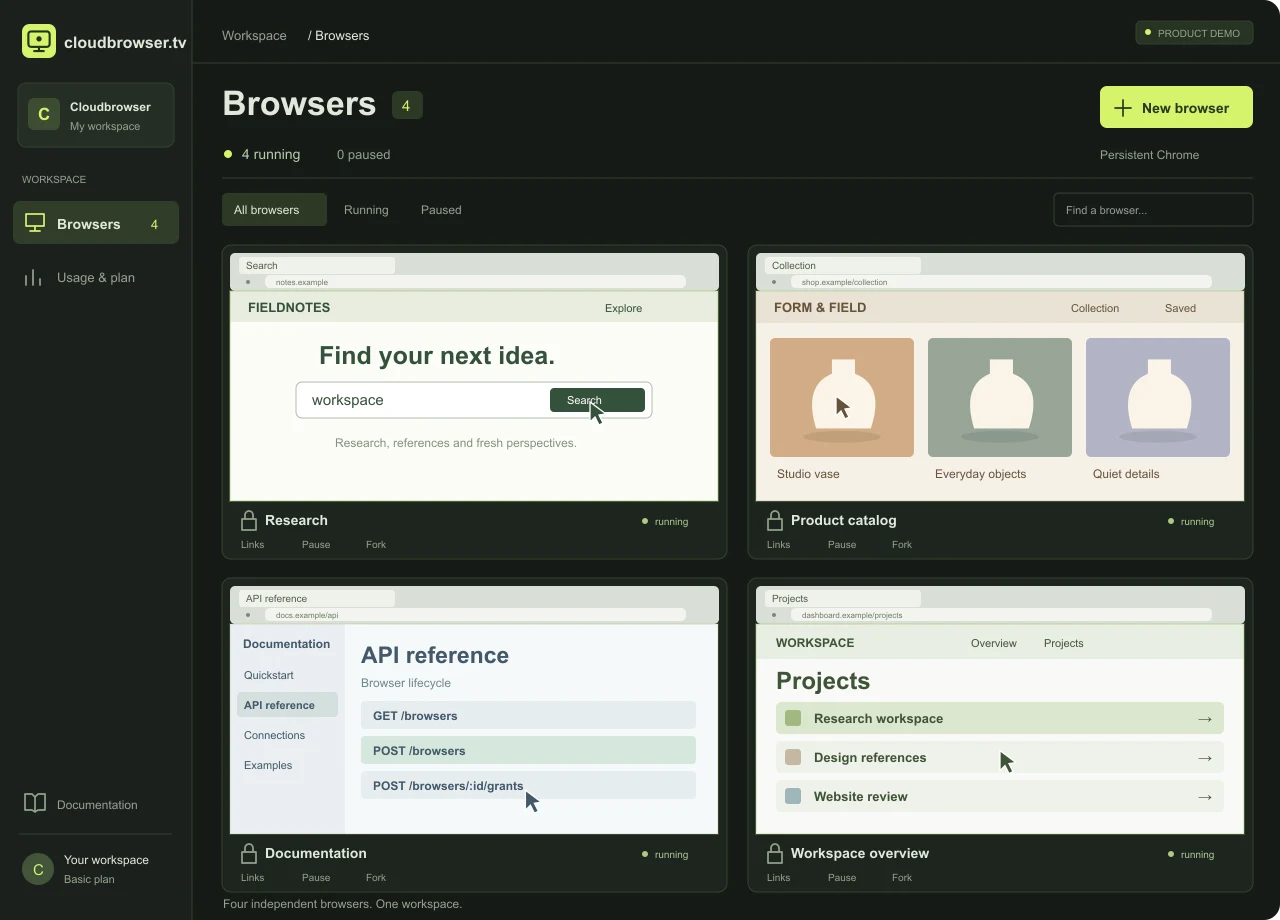
How to open a virtual browser
Open the Console
Choose Open a virtual browser, then sign in or create an account and verify your email.
Create your Chrome
Select New browser, enter a browser name and choose Create browser. Wait for it to show Running.
Browse and come back later
Use Expand on the browser card, then type a URL into Chrome’s address bar. Use Pause browser when you’re done and Resume browser to return to the saved profile.
Virtual browser FAQ
Can I try Chrome before saving a browser?
For a temporary session, open the free cloud browser playground. For a saved profile, Cloudbrowser’s Free plan includes one browser-hour per UTC calendar month and one running Chrome at a time. You need a verified email to start. At the limit, Chrome pauses. You can resume after the monthly reset or after upgrading. See plans and browser-hour pricing.
Do I have to download Chrome or an extension?
No. Open Live View in your current browser. The remote Chrome desktop, including its tabs and address bar, streams into the Console.
Will websites remember my login when I come back?
Yes, while the website still accepts your session. Cloudbrowser saves profile files such as cookies and local storage across pause and resume. The website can expire the session or ask you to sign in again.
Can I use the same browser with an AI agent or Playwright?
Yes. Create a CDP link for a tool that supports Chrome DevTools Protocol, such as Playwright. You can view and operate the same desktop in the Console while the tool is connected.
How is a virtual browser different from a VPN?
A virtual browser runs Chrome and loads pages on a remote machine. A VPN routes traffic from apps running on your device through a different network. Cloudbrowser handles browsing inside its own Chrome.
Can I test Safari, Firefox, or a specific Chrome version?
Cloudbrowser provides desktop Chrome. If your work requires Safari, Firefox, a particular browser build, or a real mobile device, use a cross-browser testing service that offers that environment.
Keep a browser ready for recurring work
If you check the same vendor portal every week, create a browser for that portal and sign in through Live View. The remote Chrome has its own profile, separate from the browser on your device. Other browsers you create start with their own profiles, so you can keep unrelated accounts and tasks separate.
Pause after you finish. Resume restarts Chrome with the data saved to its profile. Finish or save form edits before pausing because unsent work and other in-memory page state can be lost. Learn what a persistent browser saves before relying on it for a recurring workflow.
Let a tool continue where you started
For a recurring form or report, set up access yourself in the Live View workspace. In the browser’s Settings, open CDP links and select Create CDP URL. A CDP client attaches to the running Chrome, so it can work in the profile you prepared. The CDP connection guide shows how to attach Playwright or Puppeteer.
A CDP link grants full control of that browser. If someone only needs to watch, create a read-only Live View link for them to accept into their account. See browser access permissions for the differences.